Mobile CMMS: discover the update of your platform

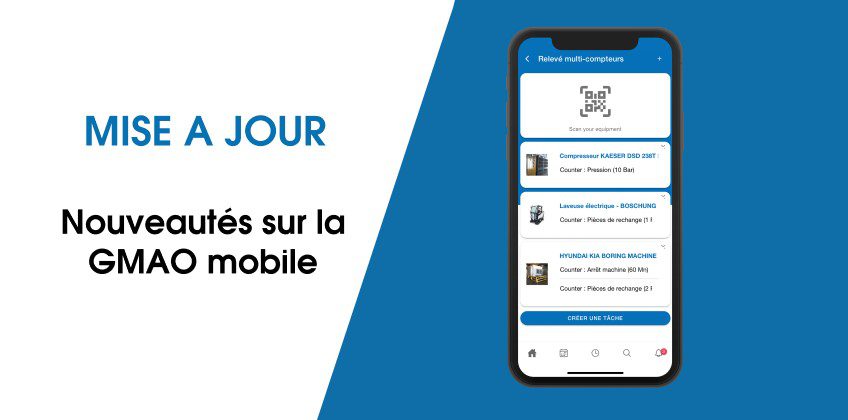
We are taking advantage of the start of the year to announce the arrival of numerous functionalities on mobile CMMS! You will thus find the possibility of creating a task from your checklists or even of carrying out mass meter readings. Discover all the new features!
Read your meters en masse thanks to mobile CMMS
The first of the new features, available to networks benefiting from a Premium or Ultimate license, concerns your meters. You can now perform mass statements and then associate a task and an activity with them, simply by scanning the QR codes.
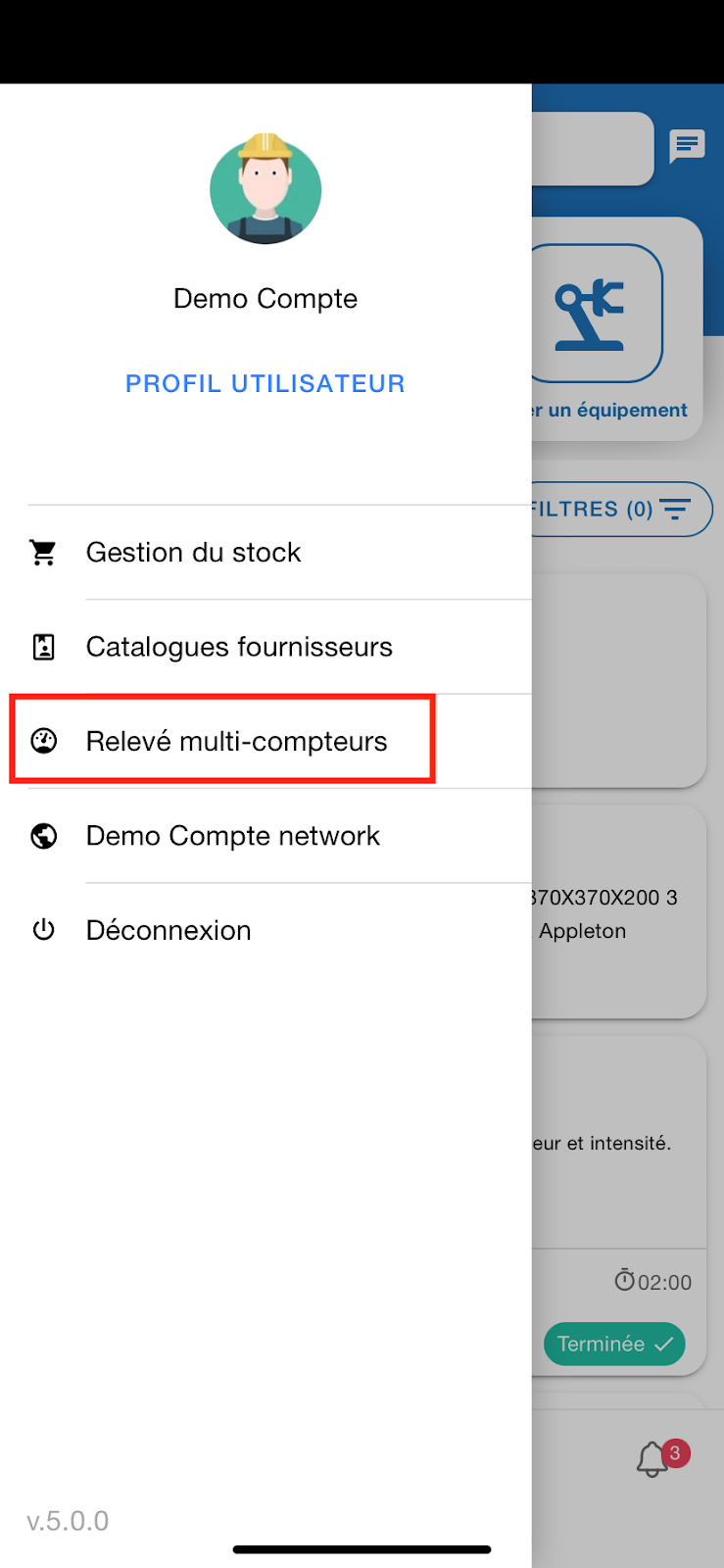
To do this, open the menu on the left and click on “Multi-meter reading” on your mobile CMMS.
Click on “Scan your equipment” to flash the corresponding QR code. If you have not yet installed a QR code, simply select your equipment manually by clicking on “+” at the top of the screen of your mobile CMMS.
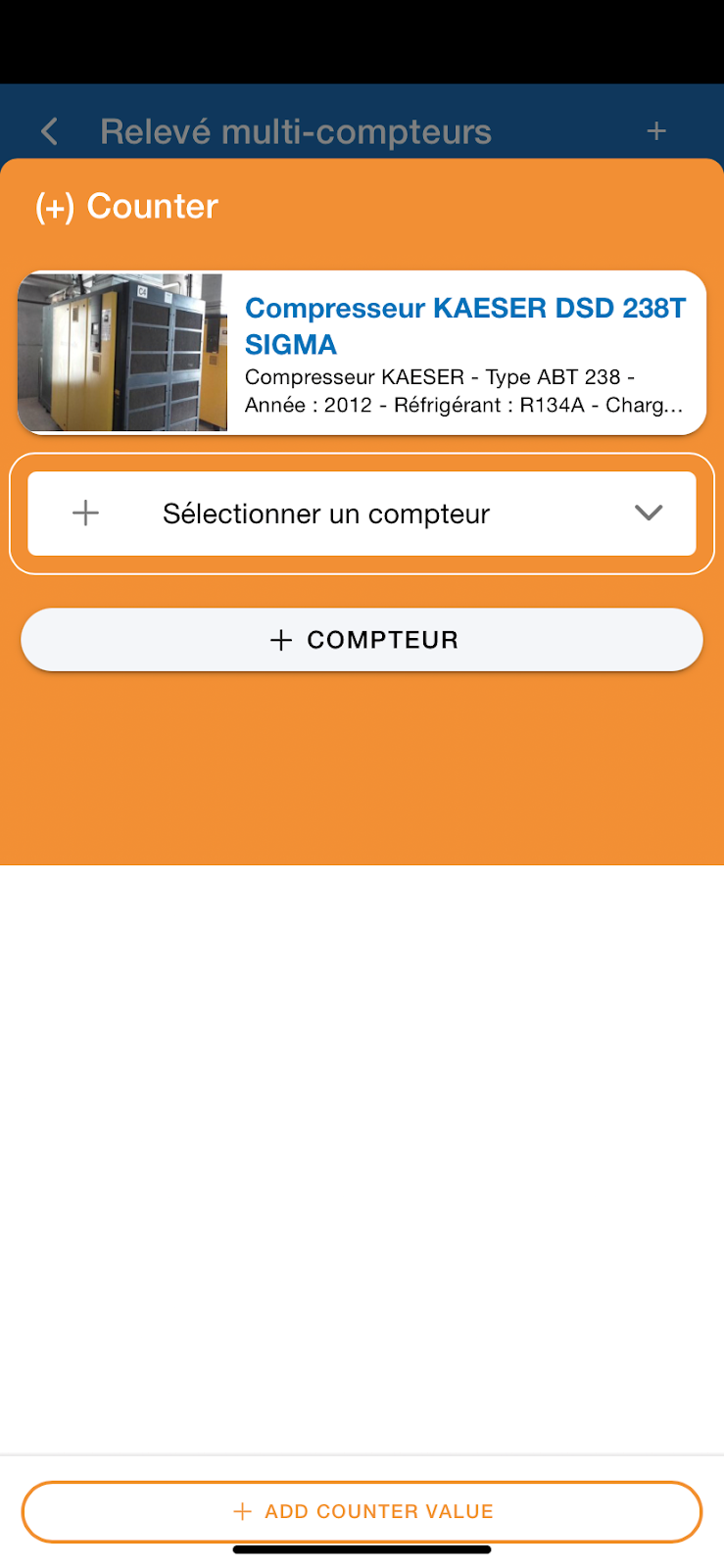
A “Counter” page then opens: select the one you are interested in and enter the statement. You also have the option of adding several counters to a single machine by clicking on “+ Counter”.
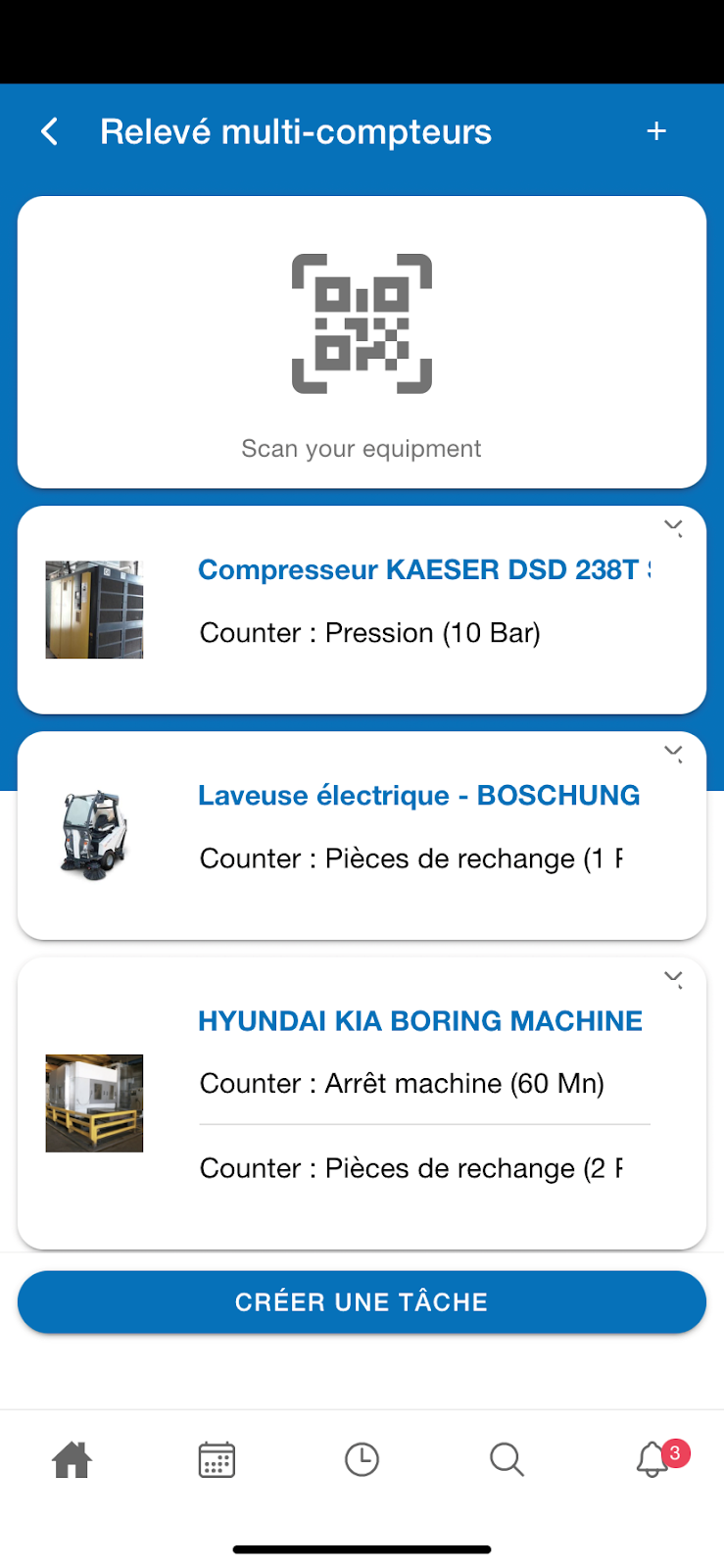
As soon as you have finished your readings, click on “+ add counter value”. You can repeat this as many times as needed, or simply go to the next step.
How do I generate associated tasks automatically?
When you have finished taking your statements in the mobile CMMS, click on “Generate tasks”. The task creation screen is then opened, followed by the activity creation screen. Simply enter the information you need: its contents will be the same for all values collected. Once the operation is complete, validate the creation.
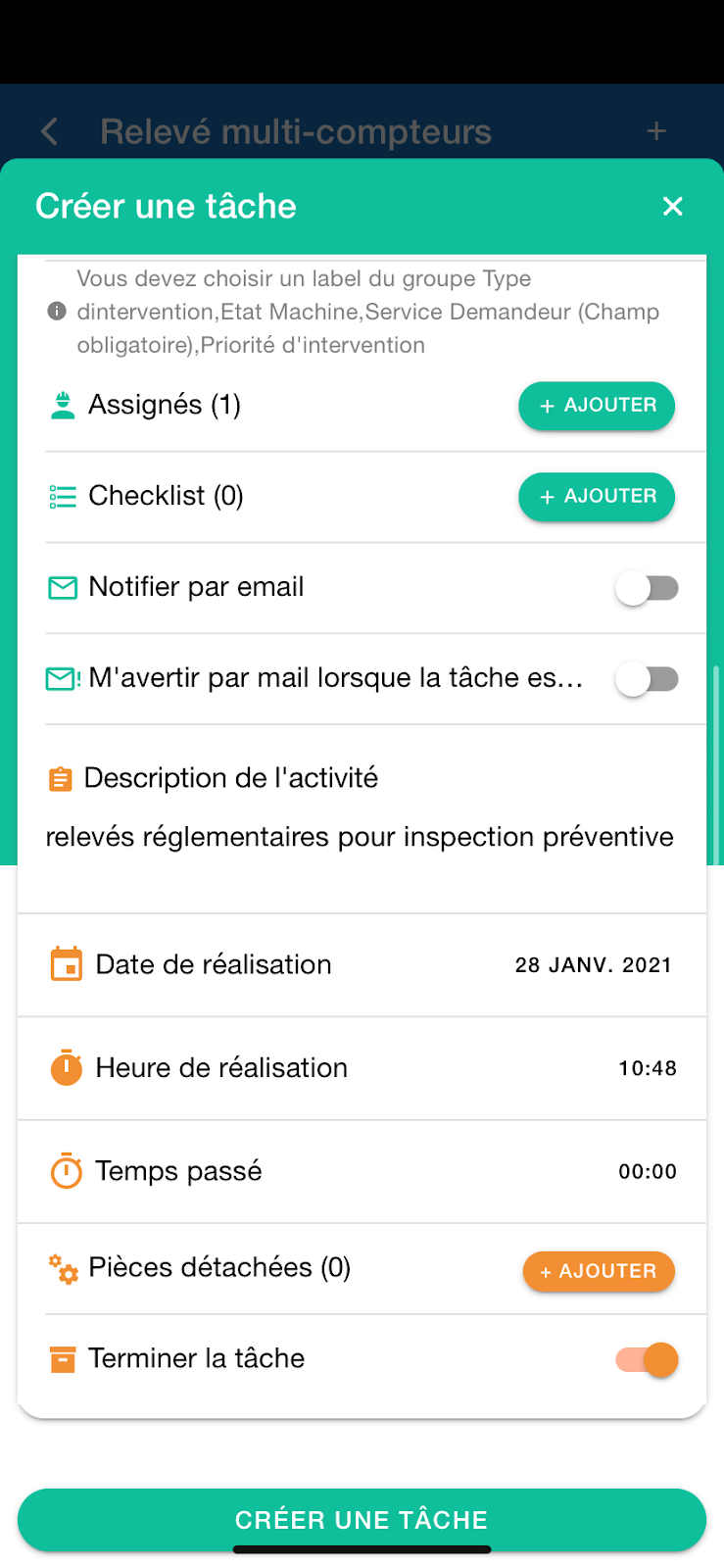
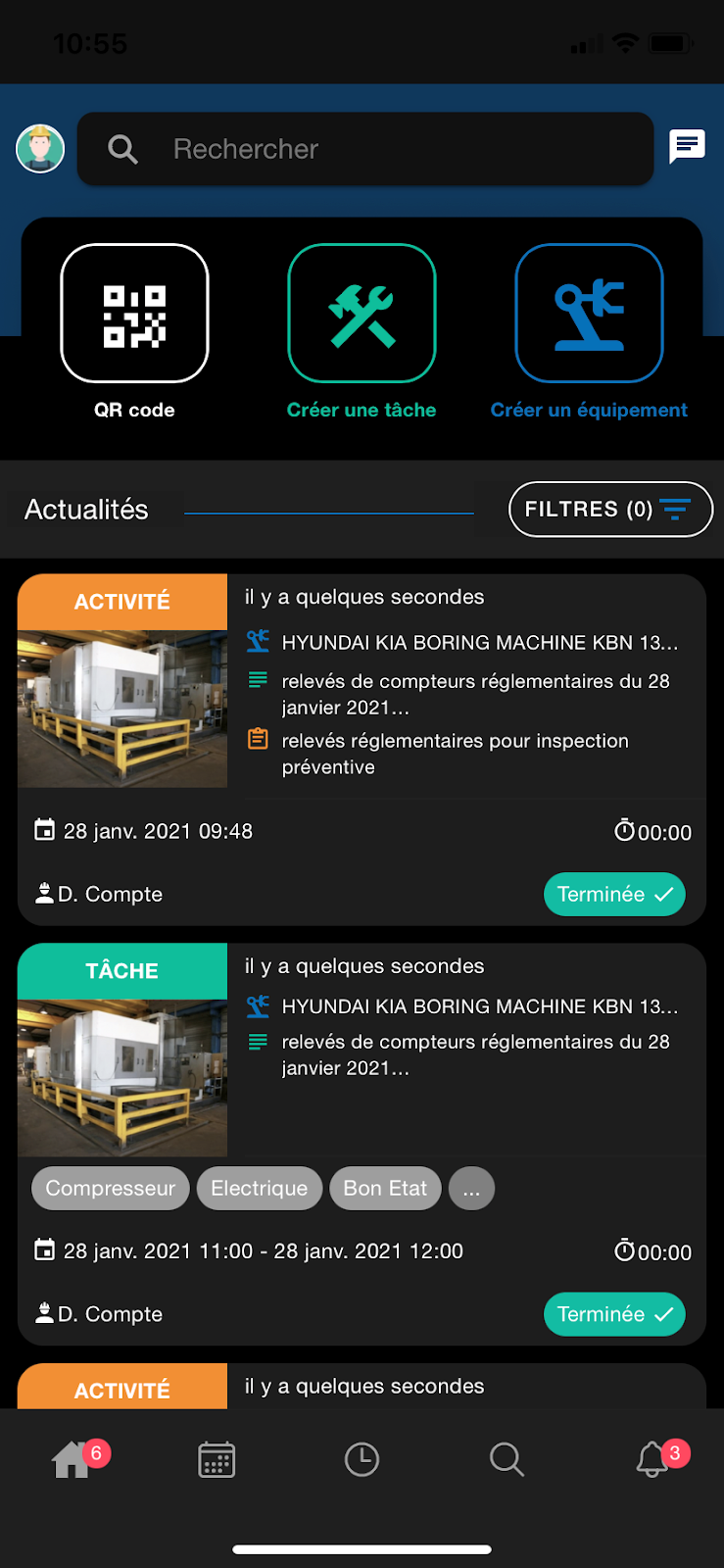
As soon as the download is complete, all the tasks you've just created appear on your news feed.
Find your suppliers in your mobile CMMS
Mobility Work connects CMMS users with industrial suppliers and manufacturers. If until now they were only accessible from the web version of your solution, Supplier Catalogs are now available on the mobile CMMS.
You will find them using the Search tab (magnifying glass pictogram), below the results of your network and the community. The products appear randomly.
If you want to find a specific reference, use the search bar at the top of the screen by typing the keywords that interest you: “engine oil”, “nuts”...
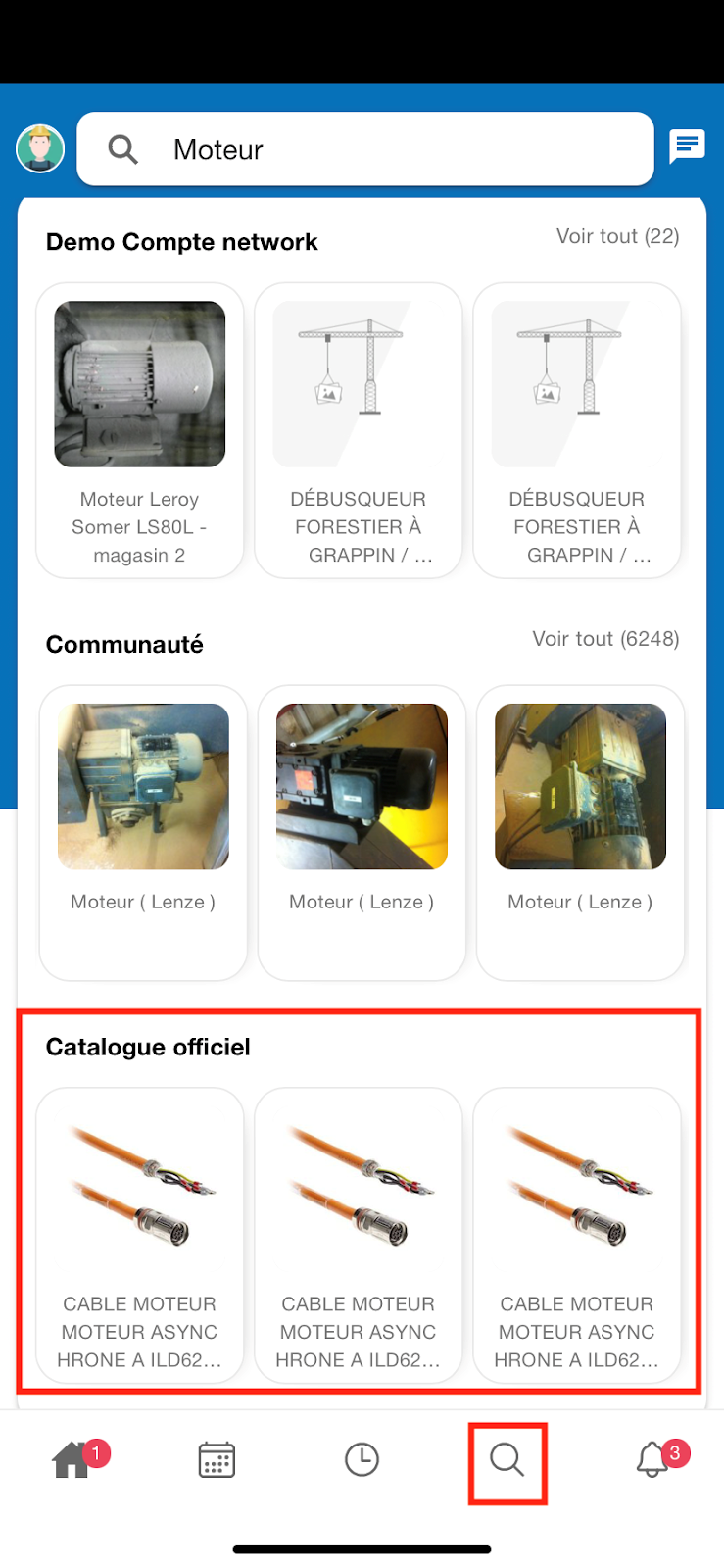
When you click on a reference, its product sheet opens and contains the following information:
- Name
- Reference
- Category
- Description
- Terms of use
- Documentation
- Manufacturer reference
- Brand
- GTIN/EAN code
- Supplier information (name, phone number, and contact email)
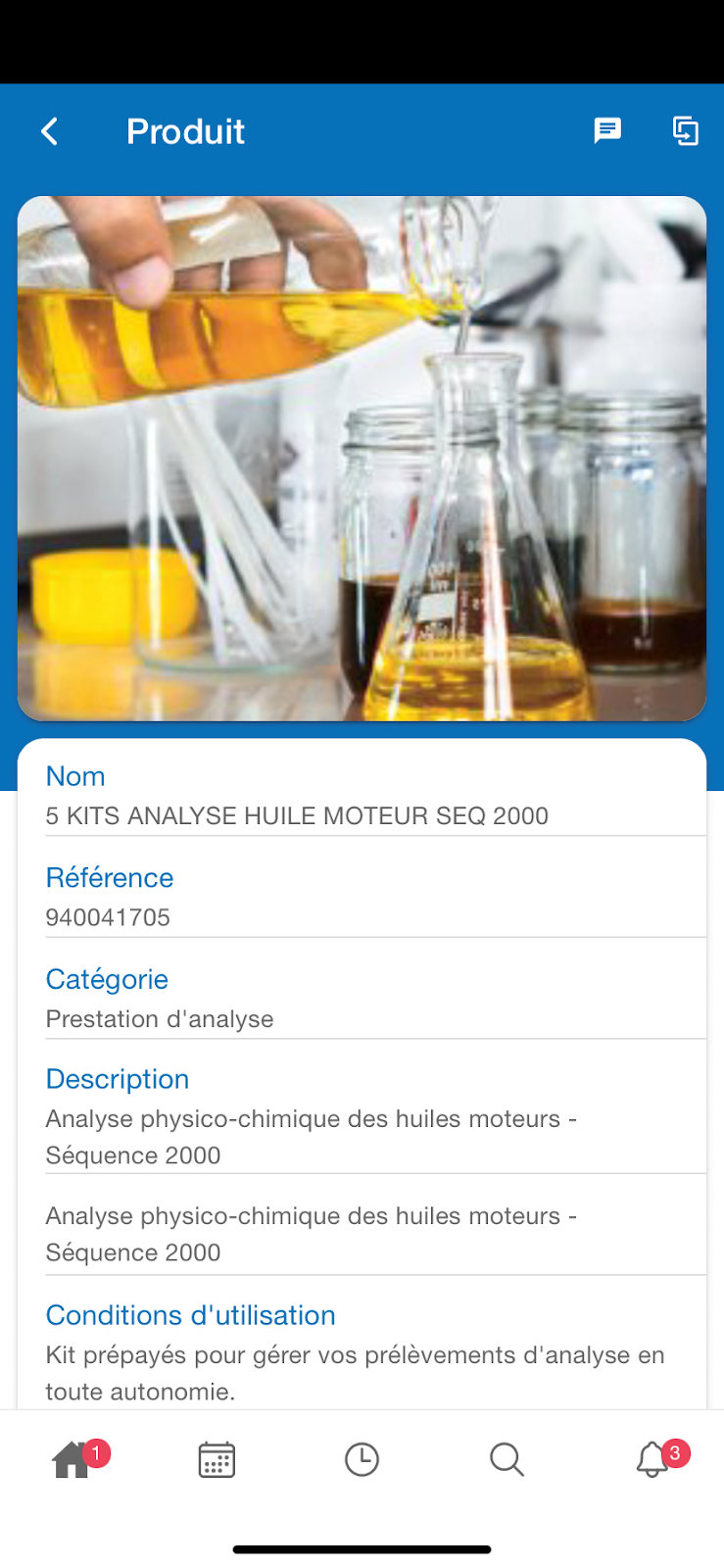
Good to know : when you buy a product from one of the suppliers listed on our platform, you can directly access its file in the mobile CMMS, by simply scanning the reference bar code.
How to duplicate a reference from the Supplier Catalog?
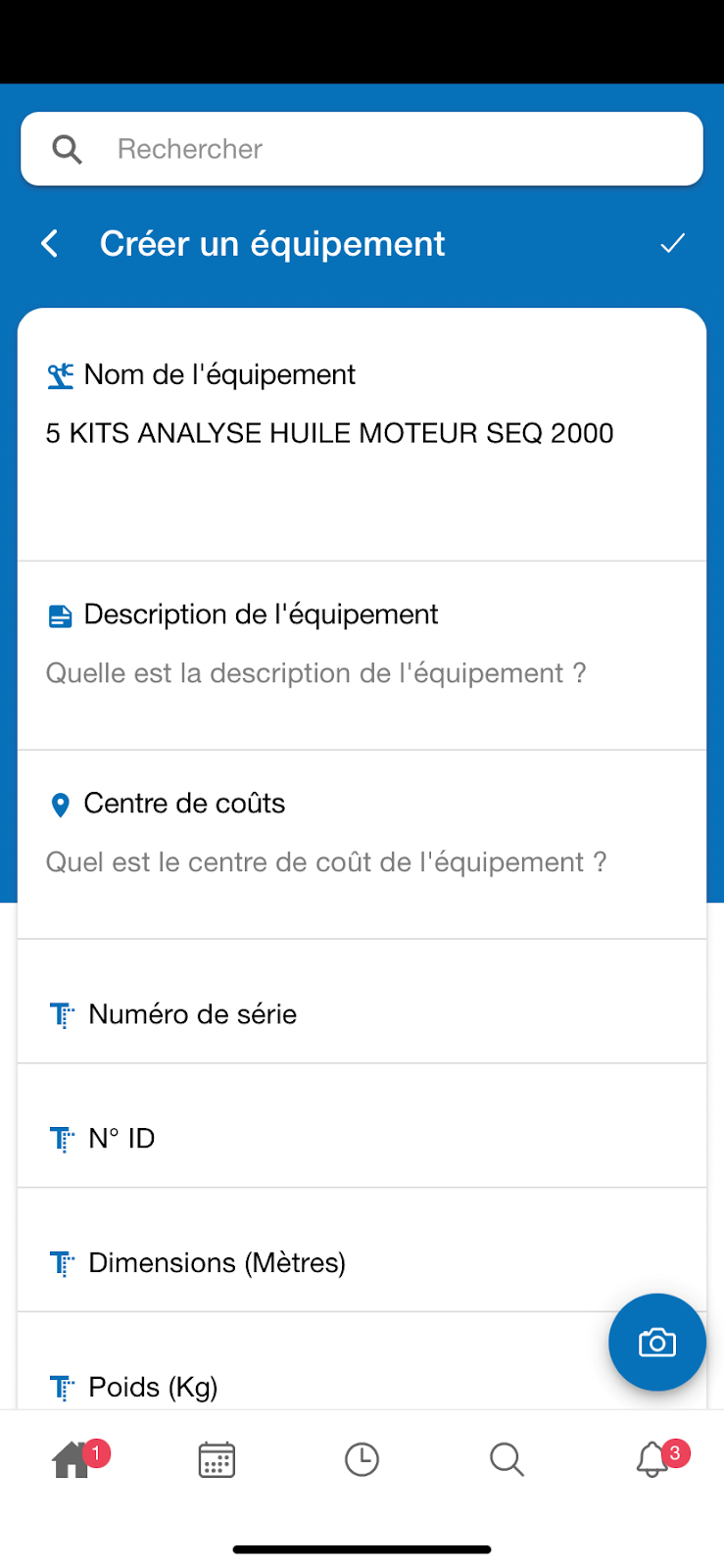
To duplicate a reference, and therefore copy it into your own equipment database, simply click on the duplication pictogram on its sheet.

This will allow the creation of an equipment sheet that includes all the information provided by the manufacturer: you are free to keep it as it is or to edit it. Complete the operation by validating.
How do I communicate with a supplier via the mobile CMMS chat?
If you have a question or a particular need regarding the use of a product, you can get in touch with the supplier through the chat. Simply click on the corresponding pictogram at the top right of the product sheet.

The email will then open and you can then communicate with the supplier in question.
Create a task from a checklist step
To save you time, this update now gives you the ability to create a task from a checklist step.
All you have to do is open the checklist of your choice and then click on the “+” of the step you are interested in to generate a task.
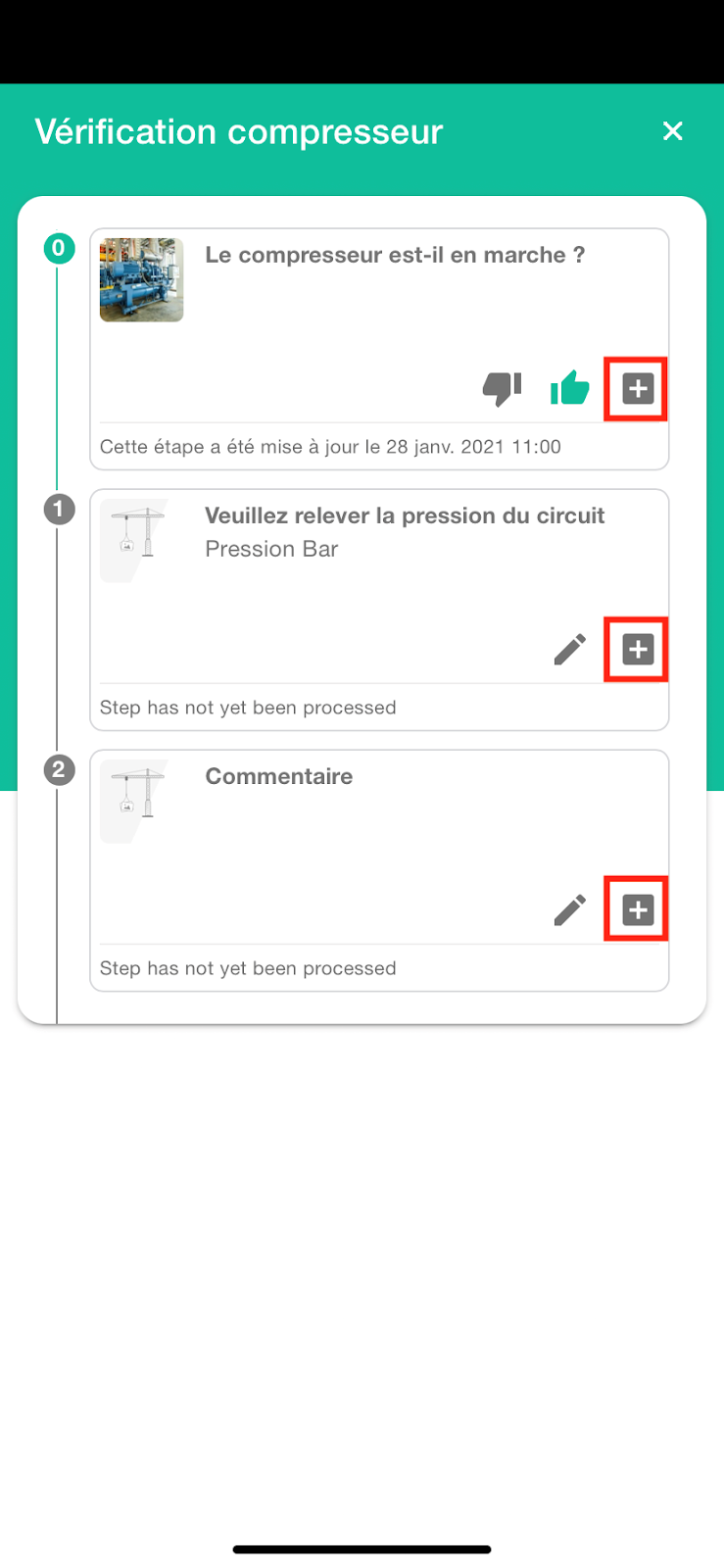
To complete this new feature, networks with at least one Premium license can view photos from their checklists.
Save time when scanning your QR codes
Among the new features of this mobile CMMS update, you will find a pop-up that is displayed as soon as you scan a QR code.
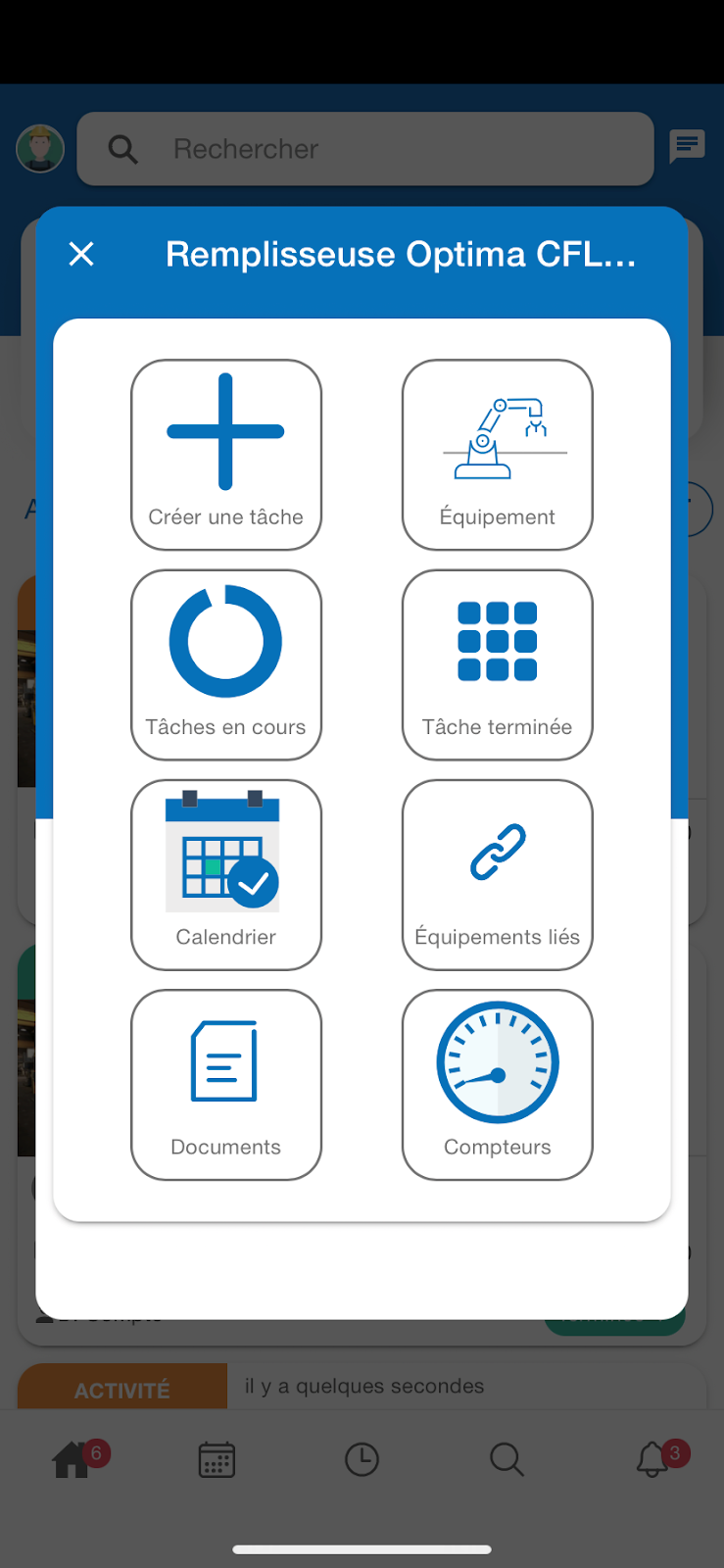
Several actions are then available to you since you can, from this window:
- Create a task
- Open the equipment sheet
- View current tasks on this device
- View completed tasks on this equipment
- Open the corresponding calendar
- Show the list of related equipment
- Show documents
- Show counters
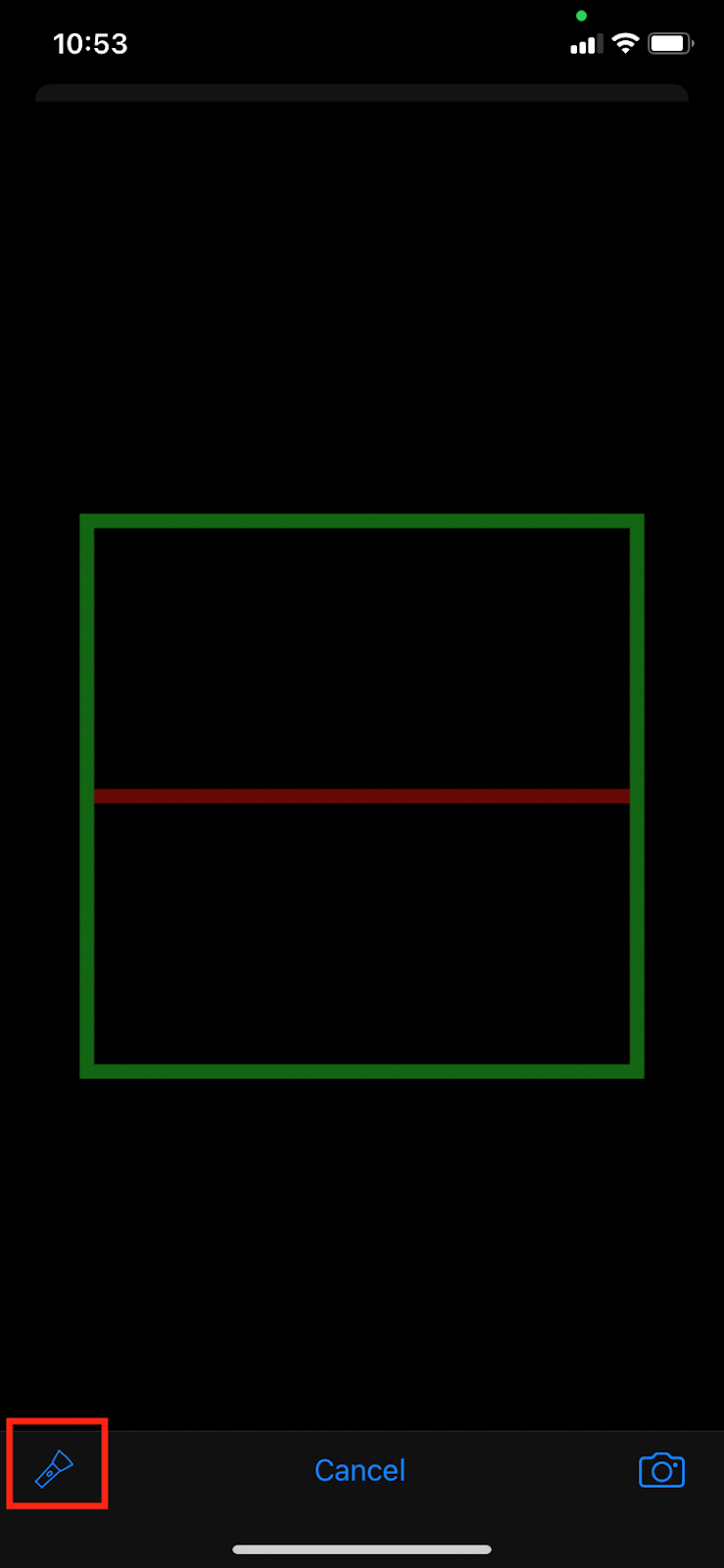
In addition, when you scan a QR, you now have the option to activate the flashlight on your phone. Simply click on the flashlight icon that appears on your screen.
Save energy with night mode
If you prefer to use a more energy-efficient application, the update now gives you the option to activate night mode.
All you have to do is open the left menu of the mobile CMMS and then click on your “User Profile”.
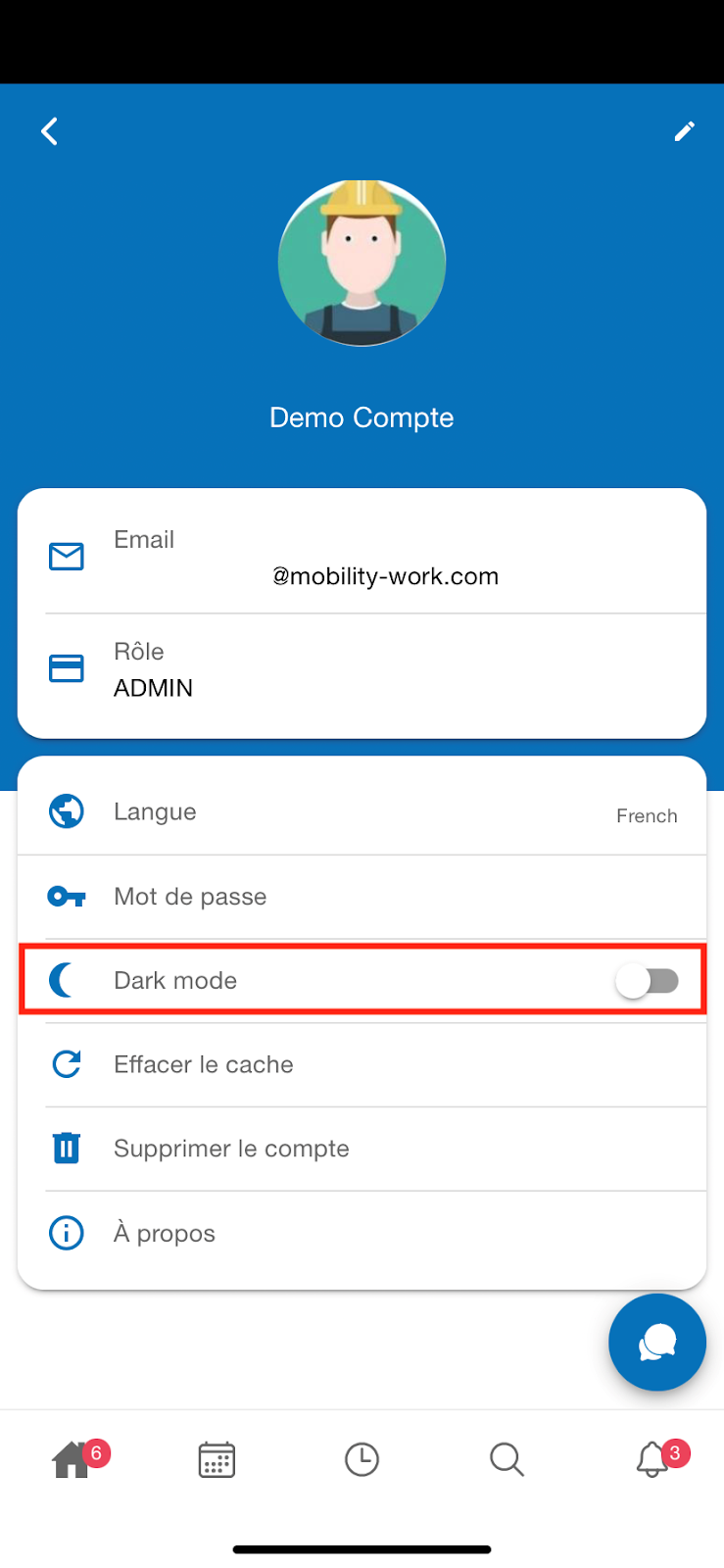
There, simply click on the night mode slider to activate it.
To be able to benefit from all of these new features, remember to update your application (android and ios) and to find out about different formulas proposed in the CMMS !
Any questions?
Contact us to discover the first CMMS that can be deployed in 3 weeks.