A look back at the main 2021 innovations in Mobility Work CMMS

Our CMMS application is constantly evolving and offering its users new functionalities and improvements based on their proposals. At the start of the year 2022, we offer you a summary of the main new features put in place over the past year in case you missed some of them.
- The offline mode of the mobile application
- New features to analyze maintenance data
- New features to better manage spare parts
- New tools to personalize and transmit maintenance data
- Even better ergonomics
- Checklists that are easier to use
You can also find the main 2021 news of our CMMS software on video on our YouTube channel.
The offline mode of the Mobile CMMS application
Our mobile CMMS application now has an offline mode, which allows you to use its essential functions even when the smartphone or tablet is not connected to any network.
Who can access the offline mode of the Mobility Work mobile application?
Offline mode is available to all users with a Premium or Ultimate plan.
What features are available in offline mode?
Users of the Mobility Work mobile application can access some of its mobile functionalities even when it is disconnected from any Internet network:
- create a task on equipment;
- modify the task created in offline mode;
- declare the created task as complete;
- create an activity corresponding to the task created;
- add a counter to the activity created and fill in values;
- add spare parts to the activity created and fill in values.
Find all the instructions to access the offline mode
Analyze your maintenance data even more easily
The analysis of maintenance data makes it possible to optimize processes in order to reduce costs and increase productivity.
Visualize your expenses on spare parts and labor
You can now visualize your expenses on spare parts or labor in two clicks. To do this, simply go to your dashboard and click on the “Expense Analysis” tab. The expenses are divided, according to your choice, by cost center or by group of labels.
Analyze maintenance expenses in detail
In addition, you can filter your expenses by period, by equipment labels, by tasks, by equipment concerned or by cost center.

Click on the image to enlarge
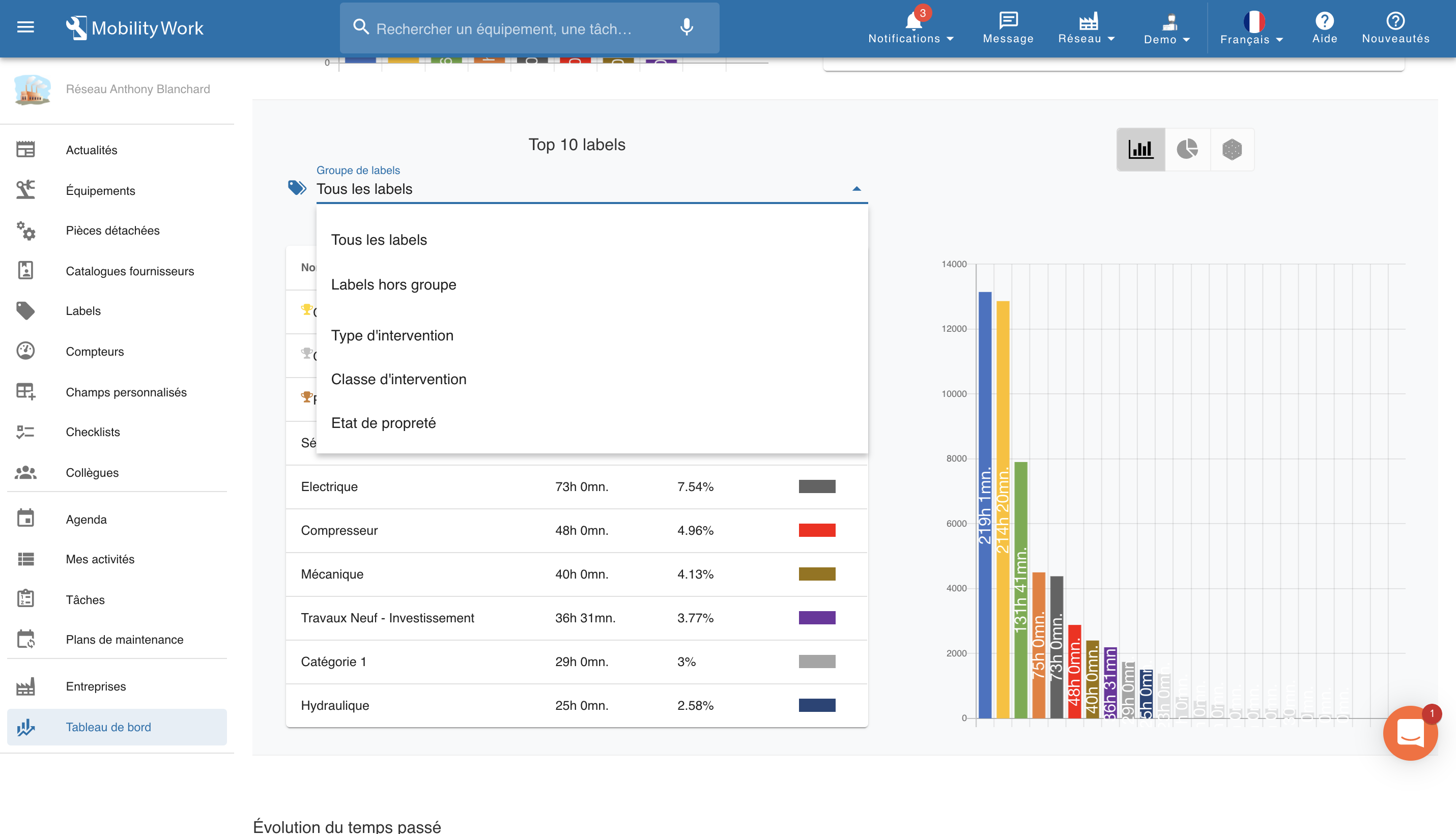
Analyze your tasks by label group
So far, theanalysis by labels did not make it possible to distinguish the different label groups (tags). In response to your expectations, our teams have developed a new version: when a group is chosen, only the labels of this group are visible in the analysis. The analysis then makes it possible to Compare what is comparable. For example: “Maintenance Type” Group, Labels: “Corrective”, “Preventive”, “Improving”.
To create label groups, administrators can go to the “Labels” menu, then click Label Group to create a new one. To edit an existing group, click the pen icon in the Action column.
To analyze by group of labels, go to the “Dashboard” menu in your CMMS. Select the Task Analysis tab, and find the 'Top 10 labels', available in the three sub-menus “intervention time”, “number of tasks” and “number of activities”.
Click on the image to enlarge
Better manage spare parts
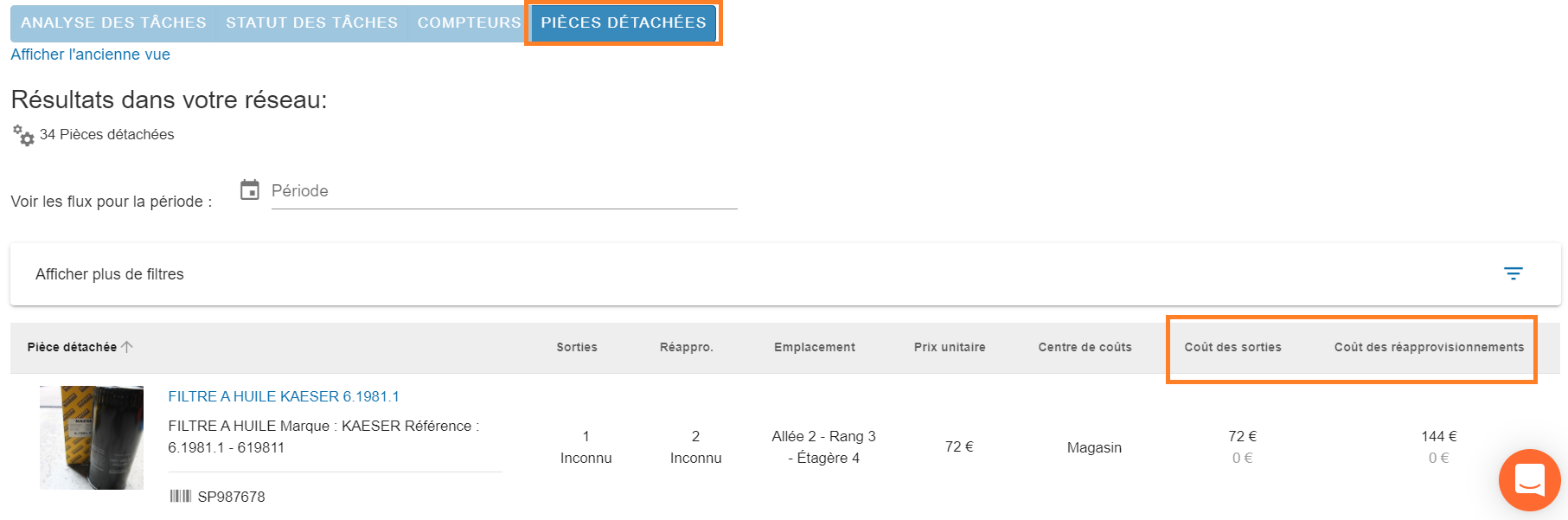
The objective is to continue to optimize Mobility Work CMMS, so that its users gain autonomy and efficiency every day. The spare parts analysis table is a widely used tool, since it allows you to keep an eye on the stock and to anticipate future shortages. So, discover two new columns now, one allowing you to visualize the exit costs And the other, the replenishment by spare part.
Find this update in the tab Spare parts ofthe Dashboard.
Access totals from the spare parts analysis table
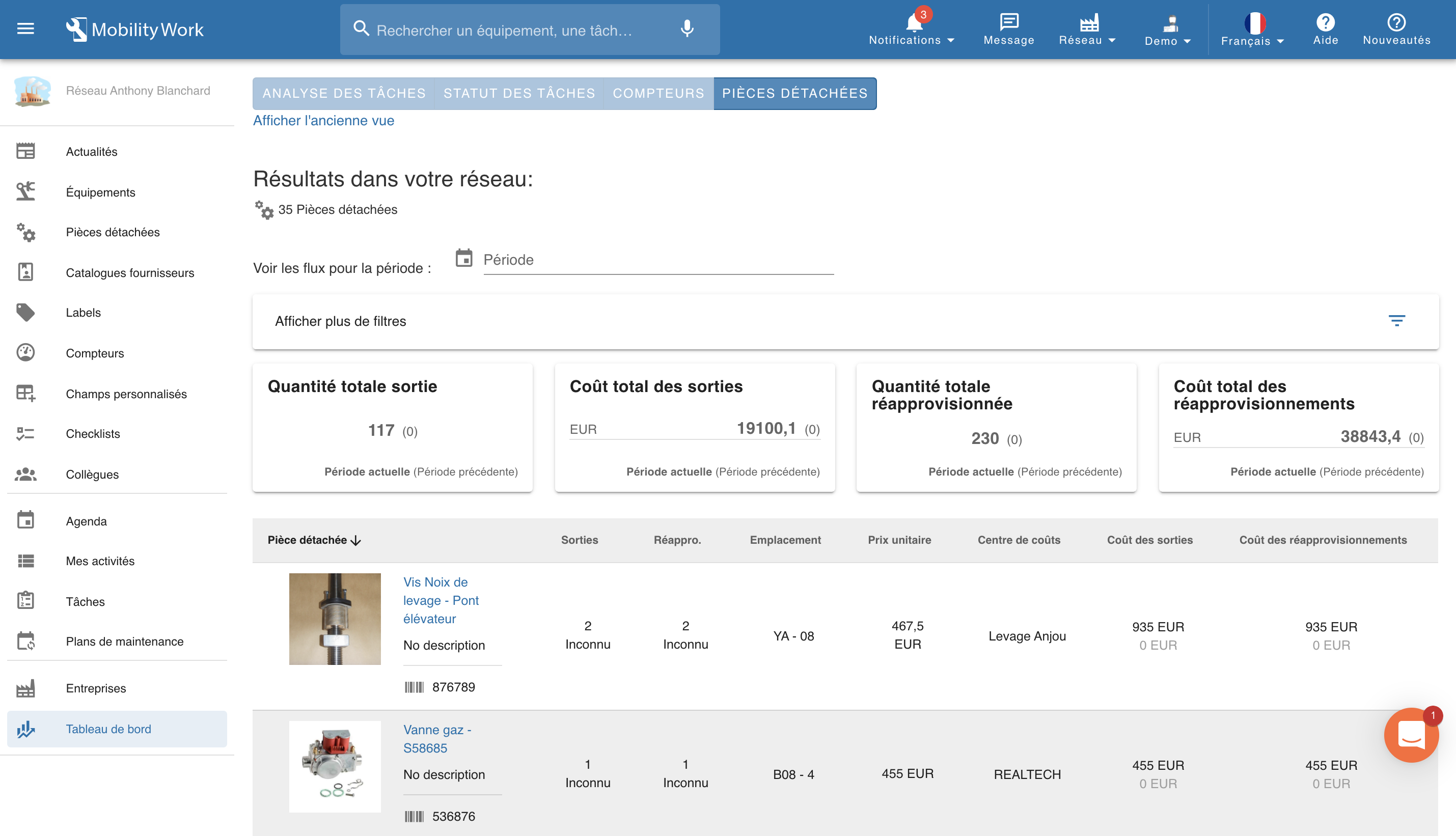
The spare parts analysis chart has been further improved. You can now see the following totals for spare parts:
- Total output quantity
- Total cost of outings
- Total quantity restocked
- Total cost of restocks
Click on the image to enlarge
Their consultation is very easy since they appear above the spare parts analysis table. Of course, you can apply the same filters to these totals (period, cost center, participant, equipment) as to the spare parts list.
Personalize and transmit maintenance data
Many users of a CMMS want to be able to export their maintenance data in Excel to rework them in their own way or send them to other departments in the company. Even though Mobility Work provides numerous indicators, some maintenance managers appreciate being able to analyze their data in a spreadsheet in order to adjust formulas by integrating existing parameters into the application. Mobility Work provides you with Excel templates to allow you to customize the analysis of your data and transmit them to other departments in your company. In particular, these templates provide access to fundamental maintenance indicators such as Pareto.
Find the tutorials for all our Excel templates on our YouTube channel
To download these templates, simply go to the Help menu, at the top right of your application, and click on the Resources tab. You will then have access to various maintenance data analysis templates and instructions to use them easily. You will thus be able, among other things, to make Pareto analysis of your data according to various criteria, or export a list of tasks or activities, for example to communicate it to a service provider outside the company.
Export your labels and the list of users on your network
You can now export your labels and the list of users on your network in XLS format. To do this, simply click on the “Download” button on the “Labels” screen or in the “Colleagues” screen.
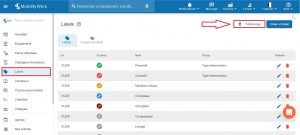
Click on the image to enlarge
An even more practical CMMS software
The ergonomics of our CMMS software is one of our priorities and has been further improved this year.
Create tasks and spare parts quickly
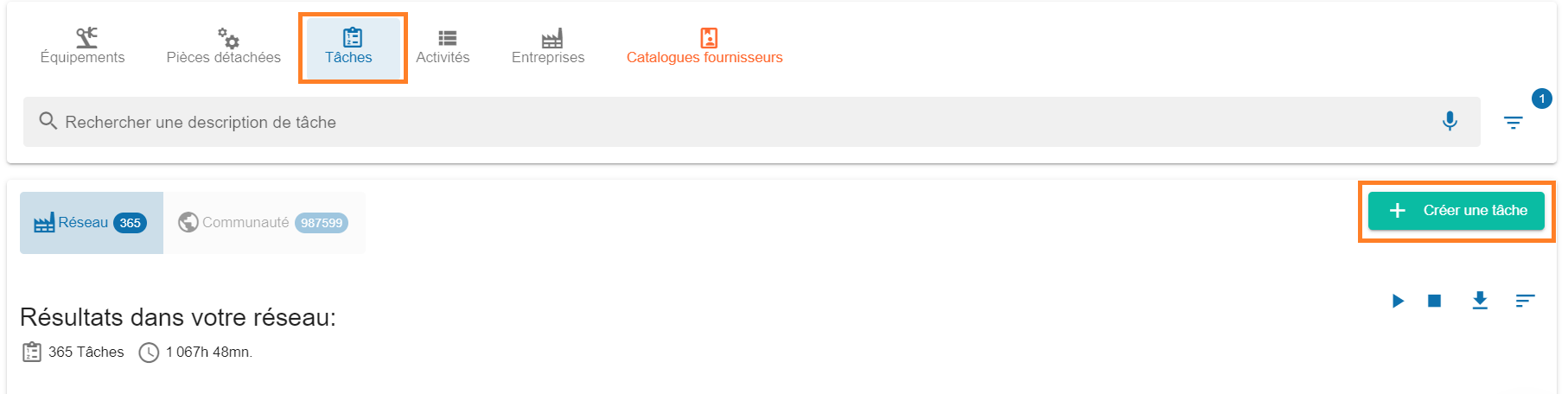
Our teams make it a point of honor to design an ergonomic platform, in order to facilitate the work of maintenance teams and to save time as much as possible. This is why, in order to facilitate your navigation in the interface, it is now possible for you to create a task or a spare part from their respective search.
Go to the menu bar and select the tab Spare parts or Tasks. Then select the “Create a spare part” or “Create a task” button at the top right of your screen, then fill in the fields.
Find tasks and activities more easily
To meet the demands of many users, the cost center selector has been improved to make it easier to find tasks or activities.
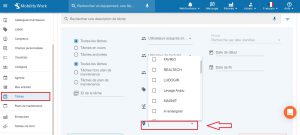
Click on the image to enlarge
In addition, a new filter allows you to search for tasks by creator.

Click on the image to enlarge
Easier to use maintenance checklists
In maintenance, checklists are of particular importance because they facilitate the work of technicians and contribute to their safety during interventions.
Duplicate your maintenance checklists
To save you time, we added the possibility of duplicating checklists. To do this, go to the “Checklists” menu then click on the “Duplicate” icon of the checklist you want to duplicate in the “Actions” column.
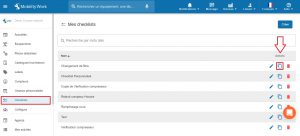
Click on the image to enlarge
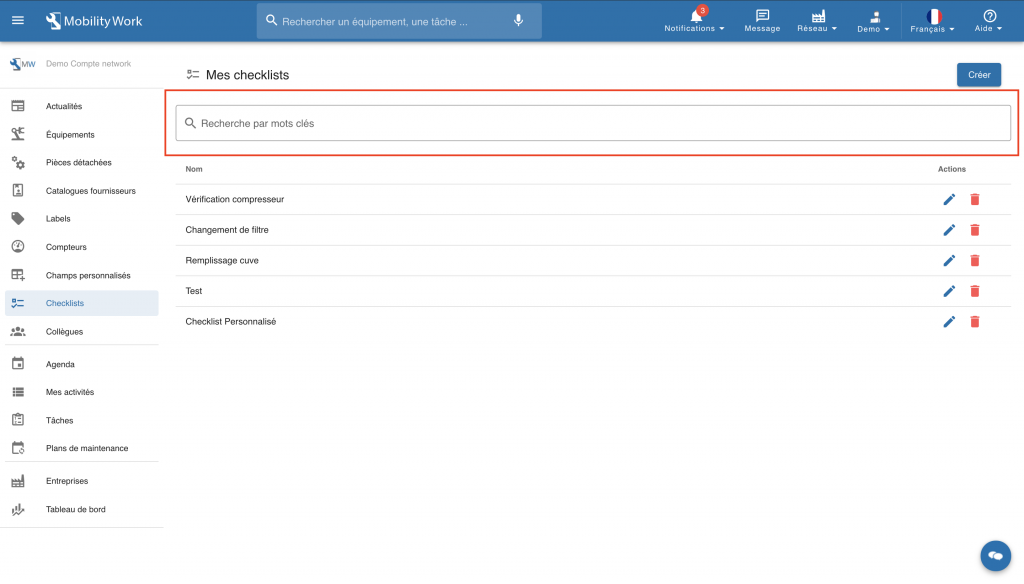
Search for a checklist by keywords
A search bar is now available in the “checklist” menu of your application, found in the left column. With this search bar, you can search for a specific checklist by keywords.
Click on the image to enlarge
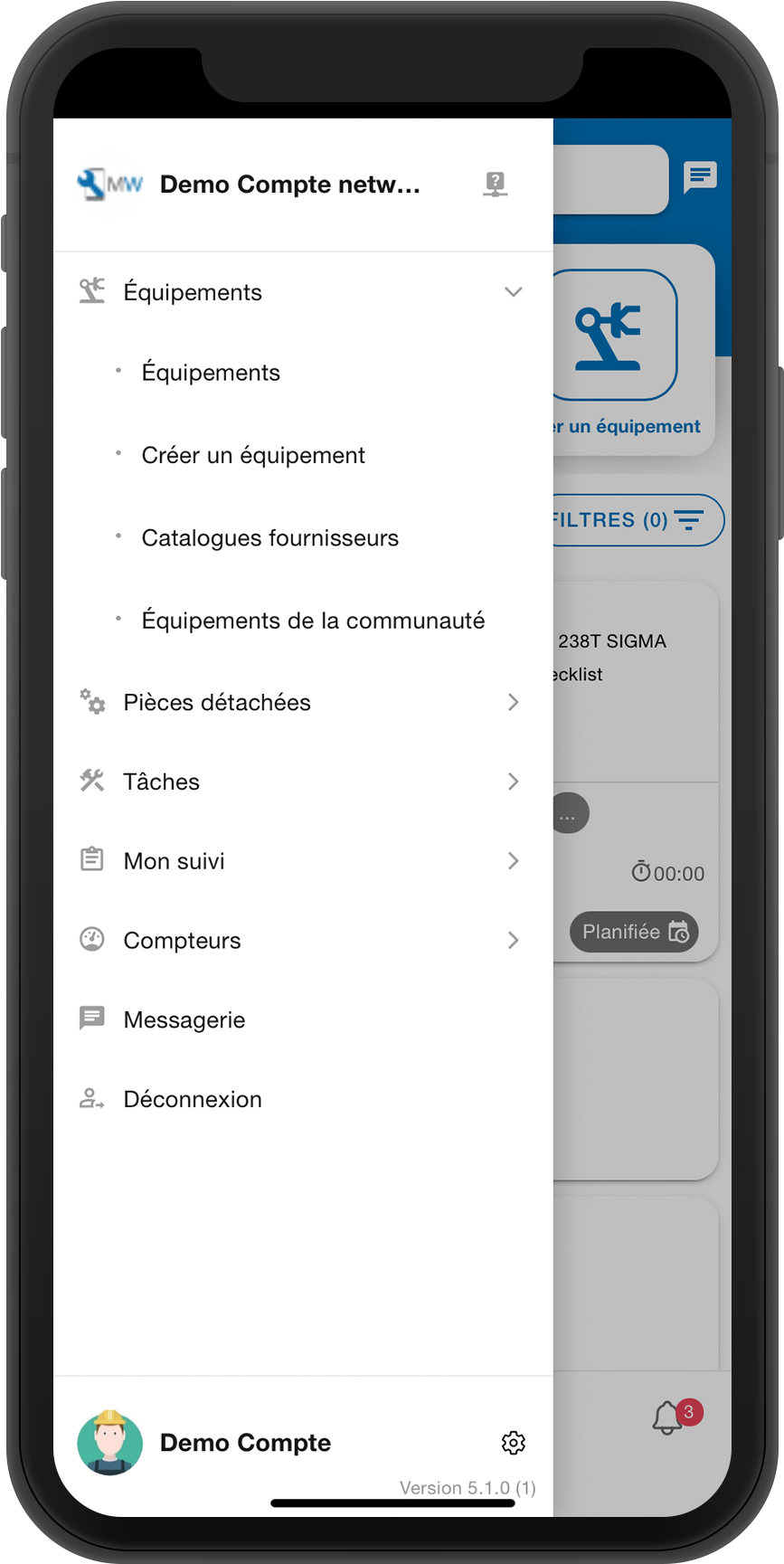
A new menu for optimized mobile CMMS
A new menu has been set up in our mobile CMMS application. It allows you to access the main functionalities more simply and quickly. Your phone or tablet allows you to be flexible and as close as possible to the machines; your Mobility Work mobile application allows you to manage your missions in real time, in an optimized way. The perfect combination for successful maintenance.
Click on the image to enlarge
Rendezvous quickly on your CMMS to benefit from these new features, and don't forget to update your mobile application (android and ios) to take advantage of the latest features!
Any questions?
Contact us to discover the first CMMS that can be deployed in 3 weeks.