CMMS news: redesign of maintenance plans (Part 1) | July 2022

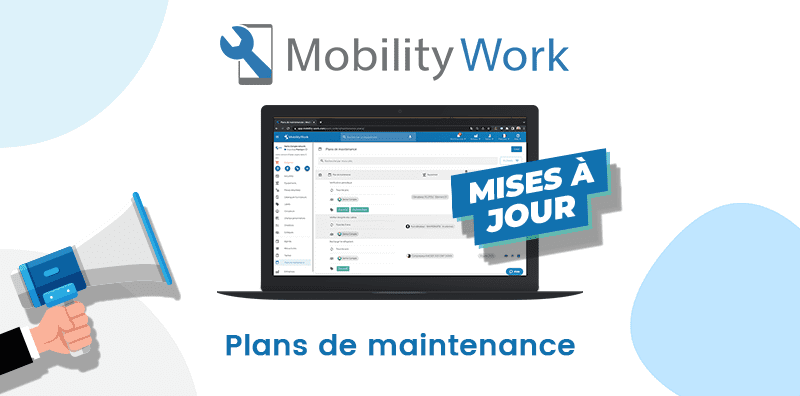
The new version of the Mobility Work CMMS maintenance plans announced a few months ago is now available to all users!
Discover updates in your application
This migration is the first step in the project to redesign maintenance plans, and contains functionalities identical to those you know today, improvements in terms of reliability and performance, but also the possibility of adding spare parts and consumables to be included in a maintenance plan, as well as the improvement of the calendar planning system.
Find out the details of this update today! (See the full list of improvements and changes here)
New maintenance plans
Research and consultation of a maintenance plan
It is possible to search the list of maintenance plans. To consult or edit a maintenance plan, you must now click on the “eye” icon.
Creating, modifying and archiving a maintenance plan
Regulatory maintenance plan
When creating a maintenance plan, it is now possible to indicate whether it is a regulatory maintenance plan.
End date and archiving
Maintenance plans no longer have an end date, and therefore have an unlimited duration. It is not possible to unarchive or delete a maintenance plan; however, you can archive, or put them temporarily paused and restart them whenever you want.
Observers
When creating a maintenance plan, you can add watchers which will be notified by email each time a task is completed.
Spare parts and documents
You can now fill in the spare parts required to carry out the tasks of the maintenance plan. This action is only possible when editing the maintenance plan. (so after having validated its creation, or later).
The documents associated with the plan can also be added after its creation, during editing, in the form of an addition of a document, or from a link.
Managing maintenance plan tasks
Complete or cancel a task
It is no longer possible to complete a task before completing or cancelling the tasks that preceded it. Indeed, the order of tasks in a maintenance plan can no longer be changed.
On the other hand, it is now possible toCancel a maintenance plan task, for example when it could not be completed and the team was too late. Indeed, it is no longer possible to remove a task from a maintenance plan. This thus makes it possible to improve traceability.
Notification that a task is complete
You can choose toTo be notified when a task is completed by clicking on the small bell located at the top right of the task sheet.
Checklists
When a checklist associated with one or more maintenance plans is modified, the changes are automatically taken into account for all future tasks not started.
It is therefore no longer necessary to make the modification on each future task. For tasks already started, the changes will not be taken into account in the associated checklist.
New task forms
Editing fields
The task interface has been improved. You can now change each field one by one directly from the task page without going through the task edit page.
Task ID
The identifier of a task is now alphanumeric (composed of letters and numbers), not just numeric. The old identifiers are backwards compatible and will therefore not be lost.
History
From now on, theThe history of a task is more accurate : all changes made to this task (new activity, change of assignees, etc.) can be viewed.
Next and previous task
This shortcut allowsaccess the previous task and the next task in one click of your maintenance plan, and thus to quickly consult your intervention reports.
A direct link to the maintenance plan is also available.
Printing a task
The format for printing tasks has been improved. A task is now printed in the form of a PDF containing more information than before and usable directly in the field by your stakeholders (your company logo, associated checklist, date and signature fields to possibly send to a service provider...).
To print a task, click on the “printer” pictogram.
When a notification appears that printing is available, you can download the PDF after reloading the page or changing pages.
Spare parts
On the task sheet, you can now see the spare parts to be provided for the intervention and the status of the stock.
Search for tasks
Only completed tasks and the next task from a maintenance plan are now displayed in the task search results as well as on the sheet of the equipment concerned.
Any questions?
Contact us to discover the first CMMS that can be deployed in 3 weeks.